

StyleSync: Building Your Personal Outfit Curator with Weather Integration 🎨
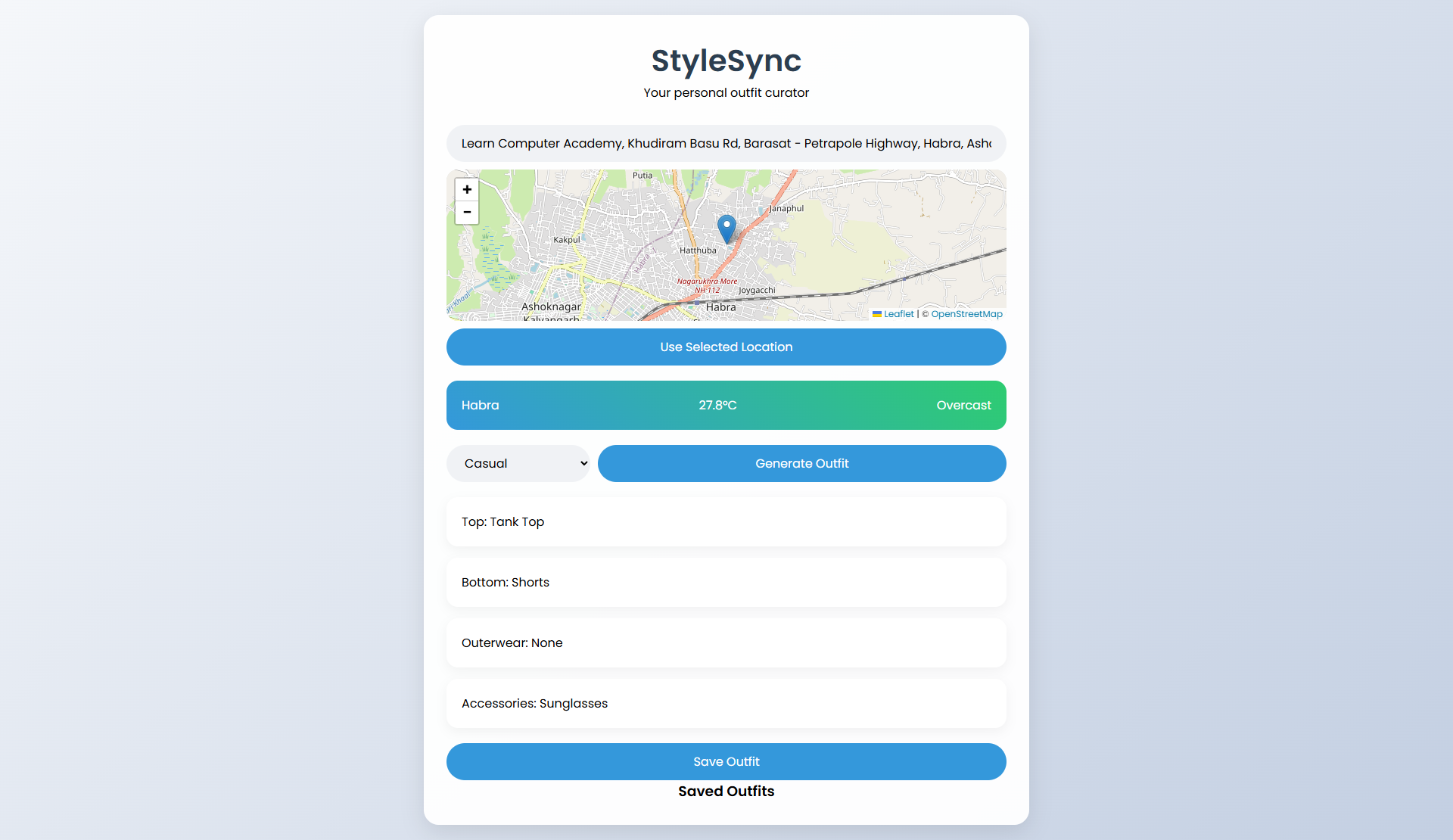
Weather plays a crucial role in our daily outfit decisions. Wouldn't it be fantastic to have a personal stylist that considers both the current weather and your preferred style to suggest the perfect outfit? In this tutorial, we'll build StyleSync - a dynamic outfit generator web application that does exactly that!
🌟 What We're Building
StyleSync is a web application that:
Gets your location using an interactive map
Fetches real-time weather data for that location
Suggests outfit combinations based on temperature and your preferred style
Allows you to save your favorite outfits for future reference
The final application will look sleek, responsive, and incredibly useful for those mornings when you just can't decide what to wear.
🚀 Check out the app here - https://playground.learncomputer.in/random-outfit-generator/
🛠️ Technology Stack
For this project, we'll use:
HTML for structuring our application
CSS for styling and responsive design
JavaScript (vanilla) for all the functionality
OpenStreetMap and Leaflet.js for location selection
Open-Meteo API for weather data
Let's dive into how each component works!
🗺️ Setting Up the HTML Structure
Our HTML structure creates the skeleton of our application, including the header, location selector, weather display, style preferences, outfit display, and saved outfits section.
<!DOCTYPE html>
<html lang="en">
<head>
    <meta charset="UTF-8">
    <meta name="viewport" content="width=device-width, initial-scale=1.0">
    <title>StyleSync - Outfit Generator</title>
    <link rel="stylesheet" href="styles.css">
    <link href="https://fonts.googleapis.com/css2?family=Poppins:wght@300;400;600&display=swap" rel="stylesheet">
    <link rel="stylesheet" href="https://unpkg.com/leaflet@1.9.4/dist/leaflet.css" />
</head>
<body>
    <div class="container">
        <header>
            <h1>StyleSync</h1>
            <p>Your personal outfit curator</p>
        </header>

        <div class="weather-input">
            <input type="text" id="locationSearch" placeholder="Search for a location">
            <div id="autocompleteResults" class="autocomplete-dropdown"></div>
            <div id="map" style="height: 200px;"></div>
            <button id="useLocation">Use Selected Location</button>
        </div>

        <div class="weather-display" id="weatherInfo">
            <div class="weather-card">
                <span id="city"></span>
                <span id="temp"></span>
                <span id="condition"></span>
            </div>
        </div>

        <div class="style-selector">
            <select id="stylePref">
                <option value="casual">Casual</option>
                <option value="formal">Formal</option>
                <option value="sporty">Sporty</option>
                <option value="bohemian">Bohemian</option>
                <option value="business_casual">Business Casual</option>
                <option value="streetwear">Streetwear</option>
                <option value="vintage">Vintage</option>
            </select>
            <button id="generateOutfit">Generate Outfit</button>
        </div>

        <div class="outfit-display" id="outfitResult">
            <div class="outfit-item" id="top"></div>
            <div class="outfit-item" id="bottom"></div>
            <div class="outfit-item" id="outerwear"></div>
            <div class="outfit-item" id="accessories"></div>
        </div>

        <div class="save-section">
            <button id="saveOutfit">Save Outfit</button>
            <div id="savedOutfits"></div>
        </div>
    </div>
    <script src="https://unpkg.com/leaflet@1.9.4/dist/leaflet.js"></script>
    <script src="script.js"></script>
</body>
</html>
Let's break down the key elements:
The
headersection contains our app name and taglineThe
weather-inputsection includes a location search, autocomplete dropdown, and an interactive mapThe
weather-displaysection will show the current weather informationThe
style-selectorallows users to choose their preferred fashion styleThe
outfit-displaywill show the generated outfit recommendationsThe
save-sectionenables users to save their favorite outfits
We're also including the Leaflet.js library which will power our interactive map functionality.
💅 Styling with CSS
Our CSS makes the application visually appealing and ensures it works well on all devices.
* {
    margin: 0;
    padding: 0;
    box-sizing: border-box;
    font-family: 'Poppins', sans-serif;
}

body {
    background: linear-gradient(135deg, #f5f7fa 0%, #c3cfe2 100%);
    min-height: 100vh;
    padding: 20px;
}

.container {
    max-width: 800px;
    margin: 0 auto;
    background: rgba(255, 255, 255, 0.95);
    border-radius: 20px;
    padding: 30px;
    box-shadow: 0 10px 30px rgba(0, 0, 0, 0.1);
}

header {
    text-align: center;
    margin-bottom: 30px;
}

h1 {
    color: #2c3e50;
    font-size: 2.5em;
    font-weight: 600;
}

.weather-input {
    margin-bottom: 20px;
    position: relative;
}

#locationSearch {
    width: 100%;
    padding: 12px 20px;
    border: none;
    border-radius: 25px;
    font-size: 1em;
    background: #f0f2f5;
    margin-bottom: 10px;
}

.autocomplete-dropdown {
    position: absolute;
    top: 100%;
    left: 0;
    right: 0;
    background: white;
    border-radius: 10px;
    box-shadow: 0 5px 15px rgba(0, 0, 0, 0.1);
    max-height: 200px;
    overflow-y: auto;
    z-index: 1000;
    display: none;
}

.autocomplete-item {
    padding: 10px 20px;
    cursor: pointer;
    transition: background 0.2s;
}

.autocomplete-item:hover {
    background: #f0f2f5;
}

#map {
    border-radius: 15px;
    margin-bottom: 10px;
}

button {
    padding: 12px 20px;
    border: none;
    border-radius: 25px;
    font-size: 1em;
    background: #3498db;
    color: white;
    cursor: pointer;
    transition: all 0.3s ease;
    width: 100%;
}

button:hover {
    background: #2980b9;
    transform: translateY(-2px);
}

.weather-card {
    background: linear-gradient(45deg, #3498db, #2ecc71);
    color: white;
    padding: 20px;
    border-radius: 15px;
    margin-bottom: 20px;
    display: flex;
    justify-content: space-between;
    animation: fadeIn 0.5s ease-in;
}

.style-selector {
    display: flex;
    gap: 10px;
    margin-bottom: 20px;
}

select {
    padding: 12px 20px;
    border: none;
    border-radius: 25px;
    font-size: 1em;
    background: #f0f2f5;
    cursor: pointer;
    flex: 1;
}

.outfit-display {
    display: grid;
    gap: 15px;
    margin-bottom: 20px;
}

.outfit-item {
    background: #fff;
    padding: 20px;
    border-radius: 15px;
    box-shadow: 0 5px 15px rgba(0, 0, 0, 0.05);
    transition: transform 0.3s ease;
}

.outfit-item:hover {
    transform: translateY(-5px);
}

.save-section {
    text-align: center;
}

@keyframes fadeIn {
    from { opacity: 0; }
    to { opacity: 1; }
}

@media (max-width: 600px) {
    .style-selector {
        flex-direction: column;
    }
}
Some key styling features include:
A subtle gradient background that creates a modern feel
Card-like components with rounded corners and soft shadows
Interactive elements with hover effects and transitions
A responsive design that adapts to different screen sizes
Animation effects for a more engaging user experience
The @media query ensures our application remains usable on smaller screens by adjusting the layout accordingly.
🧠 Building the Logic with JavaScript
Now for the exciting part - bringing our application to life with JavaScript! We'll create an OutfitGenerator class to handle all the functionality.
class OutfitGenerator {
constructor() {
this.weatherData = null;
this.savedOutfits = JSON.parse(localStorage.getItem('savedOutfits')) || [];
this.map = null;
this.marker = null;
this.initMap();
this.initEventListeners();
this.loadSavedOutfits();
}
initMap() {
    this.map = L.map('map').setView([51.505, -0.09], 13); // Default to London
    L.tileLayer('https://{s}.tile.openstreetmap.org/{z}/{x}/{y}.png', {
        attribution: '© <a href="https://www.openstreetmap.org/copyright">OpenStreetMap</a>'
    }).addTo(this.map);

    this.marker = L.marker([51.505, -0.09]).addTo(this.map);

    this.map.on('click', (e) => {
        this.marker.setLatLng(e.latlng);
    });
}
initEventListeners() {
document.getElementById('useLocation').addEventListener('click', () => this.fetchWeather());
document.getElementById('generateOutfit').addEventListener('click', () => this.generateOutfit());
document.getElementById('saveOutfit').addEventListener('click', () => this.saveCurrentOutfit());
const searchInput = document.getElementById('locationSearch');
searchInput.addEventListener('input', () => this.searchLocation(searchInput.value));
searchInput.addEventListener('focus', () => this.showAutocomplete());
}
async searchLocation(query) {
    if (query.length < 3) {
        this.hideAutocomplete();
        return;
    }

    try {
        const response = await fetch(`https://nominatim.openstreetmap.org/search?q=${encodeURIComponent(query)}&format=json&limit=5`);
        const results = await response.json();
        this.displayAutocomplete(results);
    } catch (error) {
        console.error('Error searching location:', error);
    }
}
displayAutocomplete(results) {
const autocompleteDiv = document.getElementById('autocompleteResults');
autocompleteDiv.innerHTML = '';
autocompleteDiv.style.display = 'block';
results.forEach(result => {
const item = document.createElement('div');
item.className = 'autocomplete-item';
item.textContent = result.display_name;
item.addEventListener('click', () => {
const lat = parseFloat(result.lat);
const lon = parseFloat(result.lon);
this.map.setView([lat, lon], 13);
this.marker.setLatLng([lat, lon]);
this.hideAutocomplete();
document.getElementById('locationSearch').value = result.display_name;
});
autocompleteDiv.appendChild(item);
});
}
showAutocomplete() {
const autocompleteDiv = document.getElementById('autocompleteResults');
if (autocompleteDiv.children.length > 0) {
autocompleteDiv.style.display = 'block';
}
}
hideAutocomplete() {
document.getElementById('autocompleteResults').style.display = 'none';
}
async fetchWeather() {
const { lat, lng } = this.marker.getLatLng();
try {
const weatherResponse = await fetch(`https://api.open-meteo.com/v1/forecast?latitude=${lat}&longitude=${lng}¤t=temperature_2m,weather_code`);
this.weatherData = await weatherResponse.json();
const geocodeResponse = await fetch(`https://nominatim.openstreetmap.org/reverse?lat=${lat}&lon=${lng}&format=json`);
const geocodeData = await geocodeResponse.json();
this.weatherData.city = geocodeData.address.city || geocodeData.address.town || 'Selected Location';
this.displayWeather();
} catch (error) {
alert('Error fetching weather data: ' + error.message);
}
}
displayWeather() {
const weatherInfo = document.getElementById('weatherInfo');
weatherInfo.style.display = 'block';
const temp = this.weatherData.current.temperature_2m;
const weatherCode = this.weatherData.current.weather_code;
document.getElementById('city').textContent = this.weatherData.city;
document.getElementById('temp').textContent = `${temp}°C`;
document.getElementById('condition').textContent = this.getWeatherCondition(weatherCode);
}
getWeatherCondition(code) {
const conditions = {
0: 'Clear sky',
1: 'Mainly clear',
2: 'Partly cloudy',
3: 'Overcast',
45: 'Fog',
51: 'Light drizzle',
61: 'Light rain',
63: 'Rain',
65: 'Heavy rain',
71: 'Light snow',
73: 'Snow',
75: 'Heavy snow'
};
return conditions[code] || 'Unknown';
}
generateOutfit() {
const style = document.getElementById('stylePref').value;
const temp = this.weatherData ? this.weatherData.current.temperature_2m : 20;
const outfits = {
casual: {
cold: { top: 'Sweatshirt', bottom: 'Jeans', outerwear: 'Puffer Jacket', accessories: 'Beanie' },
mild: { top: 'T-shirt', bottom: 'Chinos', outerwear: 'Cardigan', accessories: 'Watch' },
hot: { top: 'Tank Top', bottom: 'Shorts', outerwear: 'None', accessories: 'Sunglasses' }
},
formal: {
cold: { top: 'Dress Shirt', bottom: 'Slacks', outerwear: 'Overcoat', accessories: 'Scarf' },
mild: { top: 'Button-up', bottom: 'Trousers', outerwear: 'Blazer', accessories: 'Tie' },
hot: { top: 'Polo', bottom: 'Light Trousers', outerwear: 'None', accessories: 'Pocket Square' }
},
sporty: {
cold: { top: 'Hoodie', bottom: 'Joggers', outerwear: 'Windbreaker', accessories: 'Cap' },
mild: { top: 'Tech Tee', bottom: 'Track Pants', outerwear: 'Light Jacket', accessories: 'Sports Watch' },
hot: { top: 'Sleeveless Tee', bottom: 'Athletic Shorts', outerwear: 'None', accessories: 'Headband' }
},
bohemian: {
cold: { top: 'Knit Sweater', bottom: 'Maxi Skirt', outerwear: 'Poncho', accessories: 'Wide Hat' },
mild: { top: 'Flowy Blouse', bottom: 'Wide Pants', outerwear: 'Kimono', accessories: 'Layered Necklaces' },
hot: { top: 'Crop Top', bottom: 'Flowy Skirt', outerwear: 'None', accessories: 'Anklet' }
},
business_casual: {
cold: { top: 'Sweater', bottom: 'Dress Pants', outerwear: 'Trench Coat', accessories: 'Leather Belt' },
mild: { top: 'Oxford Shirt', bottom: 'Chinos', outerwear: 'Light Blazer', accessories: 'Loafers' },
hot: { top: 'Short-sleeve Button-up', bottom: 'Slim Trousers', outerwear: 'None', accessories: 'Watch' }
},
streetwear: {
cold: { top: 'Graphic Hoodie', bottom: 'Cargo Pants', outerwear: 'Bomber Jacket', accessories: 'Snapback' },
mild: { top: 'Oversized Tee', bottom: 'Ripped Jeans', outerwear: 'Denim Jacket', accessories: 'Chain Necklace' },
hot: { top: 'Sleeveless Hoodie', bottom: 'Jogger Shorts', outerwear: 'None', accessories: 'Bucket Hat' }
},
vintage: {
cold: { top: 'Turtleneck', bottom: 'Corduroy Pants', outerwear: 'Pea Coat', accessories: 'Beret' },
mild: { top: 'Retro Shirt', bottom: 'High-waisted Trousers', outerwear: 'Cardigan', accessories: 'Suspenders' },
hot: { top: 'Hawaiian Shirt', bottom: 'Linen Shorts', outerwear: 'None', accessories: 'Round Sunglasses' }
}
};
const tempRange = temp < 15 ? 'cold' : temp < 25 ? 'mild' : 'hot';
const outfit = outfits[style][tempRange];
document.getElementById('top').textContent = `Top: ${outfit.top}`;
document.getElementById('bottom').textContent = `Bottom: ${outfit.bottom}`;
document.getElementById('outerwear').textContent = `Outerwear: ${outfit.outerwear}`;
document.getElementById('accessories').textContent = `Accessories: ${outfit.accessories}`;
}
saveCurrentOutfit() {
const outfit = {
top: document.getElementById('top').textContent,
bottom: document.getElementById('bottom').textContent,
outerwear: document.getElementById('outerwear').textContent,
accessories: document.getElementById('accessories').textContent,
date: new Date().toLocaleDateString()
};
this.savedOutfits.push(outfit);
localStorage.setItem('savedOutfits', JSON.stringify(this.savedOutfits));
this.loadSavedOutfits();
}
loadSavedOutfits() {
const savedDiv = document.getElementById('savedOutfits');
savedDiv.innerHTML = '<h3>Saved Outfits</h3>';
this.savedOutfits.forEach((outfit, index) => {
savedDiv.innerHTML += `
<div class="outfit-item">
<p>${outfit.date}</p>
<p>${outfit.top}</p>
<p>${outfit.bottom}</p>
<p>${outfit.outerwear}</p>
<p>${outfit.accessories}</p>
</div>
`;
});
}
}
new OutfitGenerator();
Let's explore how the key features work:
🗺️ Interactive Map Implementation
We initialize a Leaflet.js map and set up a marker that users can position to select their location:
initMap() {
this.map = L.map('map').setView([51.505, -0.09], 13); // Default to London
L.tileLayer('https://{s}.tile.openstreetmap.org/{z}/{x}/{y}.png', {
attribution: '© <a href="https://www.openstreetmap.org/copyright">OpenStreetMap</a>'
}).addTo(this.map);
this.marker = L.marker([51.505, -0.09]).addTo(this.map);
this.map.on('click', (e) => {
this.marker.setLatLng(e.latlng);
});
}
The map starts centered on London, but users can click anywhere to reposition the marker. This gives us the latitude and longitude coordinates we need for weather data.
🔍 Location Search with Autocomplete
To enhance user experience, we've implemented a location search with autocomplete functionality:
async searchLocation(query) {
if (query.length < 3) {
this.hideAutocomplete();
return;
}
try {
const response = await fetch(`https://nominatim.openstreetmap.org/search?q=${encodeURIComponent(query)}&format=json&limit=5`);
const results = await response.json();
this.displayAutocomplete(results);
} catch (error) {
console.error('Error searching location:', error);
}
}
This function queries the Nominatim API (OpenStreetMap's geocoding service) whenever the user types at least three characters into the search box. The results are displayed in a dropdown that users can click to select a location.
☀️ Fetching Weather Data
Once a location is selected, we fetch weather data from the Open-Meteo API:
async fetchWeather() {
const { lat, lng } = this.marker.getLatLng();
try {
const weatherResponse = await fetch(`https://api.open-meteo.com/v1/forecast?latitude=${lat}&longitude=${lng}¤t=temperature_2m,weather_code`);
this.weatherData = await weatherResponse.json();
const geocodeResponse = await fetch(`https://nominatim.openstreetmap.org/reverse?lat=${lat}&lon=${lng}&format=json`);
const geocodeData = await geocodeResponse.json();
this.weatherData.city = geocodeData.address.city || geocodeData.address.town || 'Selected Location';
this.displayWeather();
} catch (error) {
alert('Error fetching weather data: ' + error.message);
}
}
This function does two important things:
It fetches the current temperature and weather code from Open-Meteo
It performs reverse geocoding to get the city name for the selected coordinates
The weather data is then displayed to the user through the displayWeather() method.
👚 Generating Outfit Recommendations
The core functionality of our app is generating outfit recommendations based on the weather and selected style:
generateOutfit() {
    const style = document.getElementById('stylePref').value;
    const temp = this.weatherData ? this.weatherData.current.temperature_2m : 20;

    const outfits = {
        casual: {
            cold: { top: 'Sweatshirt', bottom: 'Jeans', outerwear: 'Puffer Jacket', accessories: 'Beanie' },
            mild: { top: 'T-shirt', bottom: 'Chinos', outerwear: 'Cardigan', accessories: 'Watch' },
            hot: { top: 'Tank Top', bottom: 'Shorts', outerwear: 'None', accessories: 'Sunglasses' }
        },
        // More styles and temperatures...
    };

    const tempRange = temp < 15 ? 'cold' : temp < 25 ? 'mild' : 'hot';
    const outfit = outfits[style][tempRange];

    document.getElementById('top').textContent = `Top: ${outfit.top}`;
    document.getElementById('bottom').textContent = `Bottom: ${outfit.bottom}`;
    document.getElementById('outerwear').textContent = `Outerwear: ${outfit.outerwear}`;
    document.getElementById('accessories').textContent = `Accessories: ${outfit.accessories}`;
}
This function:
Gets the user's selected style preference
Determines the temperature range (cold, mild, or hot)
Selects appropriate clothing items from our predefined outfits object
Updates the UI to display the recommended outfit
Our outfits object contains recommendations for various style preferences (casual, formal, sporty, etc.) and temperature ranges, creating a comprehensive set of outfit possibilities.
💾 Saving Favorite Outfits
To enhance user experience, we've added the ability to save favorite outfits:
saveCurrentOutfit() {
    const outfit = {
        top: document.getElementById('top').textContent,
        bottom: document.getElementById('bottom').textContent,
        outerwear: document.getElementById('outerwear').textContent,
        accessories: document.getElementById('accessories').textContent,
        date: new Date().toLocaleDateString()
    };

    this.savedOutfits.push(outfit);
    localStorage.setItem('savedOutfits', JSON.stringify(this.savedOutfits));
    this.loadSavedOutfits();
}
This function saves the current outfit recommendation to local storage along with the current date. This allows users to keep track of outfits they liked and refer back to them later.
🚀 Initializing the Application
Finally, we create an instance of our OutfitGenerator class to start everything up:
new OutfitGenerator();
This single line initializes our map, sets up event listeners, and loads any previously saved outfits.
📱 Making It Responsive
Our application is designed to work well on all devices. The CSS media queries adjust the layout for smaller screens, and the UI elements are sized appropriately to ensure good usability on both desktop and mobile.
🔍 Potential Enhancements
Here are some ways you could extend this project:
Add images or icons for each clothing type
Implement user accounts to store outfits in the cloud
Add more detailed weather considerations (rain, snow, etc.)
Expand the outfit database with more specific recommendations
Add a "share outfit" feature for social media
🎯 Conclusion
Building StyleSync is a fantastic way to combine practical web technologies with a useful daily tool. This project demonstrates:
Working with third-party APIs
Creating interactive maps
Building autocomplete search functionality
Managing local storage for data persistence
Creating a responsive and visually appealing interface
Next time you're wondering what to wear, StyleSync will be there to help you look your best, no matter the weather! 🌦️👗
Happy coding! 👩💻👨💻


